How to Use Google Search Console: Setup and 5 Places to Check First
Set up Google Search Console and learn the five places to check first: performance, indexing, URL inspection, sitemaps, and Core Web Vitals.


Google Search Console can tell you whether Google can find your pages, which searches show them, and where clicks are being lost. The trick is knowing where to look first. You do not need to master every report on day one.
This guide walks through setup and the five places I would check on a new or newly inherited site. It works whether you use WordPress, Shopify, Ghost, a custom app, or something else.
First, add the right property
Open Search Console and add a property. Google offers two website property types:
- Domain property: covers the domain, its subdomains, and both HTTP and HTTPS. It requires DNS verification. Choose this when you control DNS and want the broadest view.
- URL-prefix property: covers only URLs beginning with the exact prefix you enter, including the protocol. It offers several verification methods. Choose this when you need to track a particular subdirectory or cannot change DNS.
For example, a Domain property for example.com includes www.example.com and blog.example.com. A URL-prefix property for https://www.example.com/ excludes https://example.com/. That distinction matters when the numbers look unexpectedly small. Google's property guide spells out the coverage and verification options.
After verification, do not panic if the charts are empty. Google says data can take a few days to appear, and a site that has not yet appeared in Search may have little to report. Adding a property does not change rankings.
1. Performance: find the pages and queries that already have demand
Start in Performance → Search results. Turn on clicks, impressions, CTR, and average position. Then compare a recent period with the previous one and look at the Pages and Queries tabs. Google's report documentation explains these metrics and dimensions.
A useful first pass is to ask:
- Which pages receive many impressions but few clicks? Open the queries for one page and inspect the actual search results before rewriting its title.
- Which pages are gaining or losing clicks? Check whether the change is limited to certain queries, countries, or devices.
- Which queries show a page that does not fully answer the searcher's question? That may be a content improvement opportunity.
Do not treat average position as a fixed rank. It is an average across appearances and can shift with query mix, location, device, and search features. Likewise, a low CTR can be normal for some intents or result layouts. Use the metrics to choose a page to investigate, not to declare a diagnosis.
First action: choose one page with meaningful impressions and a clear mismatch between its snippet and the queries it appears for. Write down the current title, the queries, and the change you plan to test. If titles are new territory, start with my metadata walkthrough.
2. Page indexing: separate expected exclusions from real problems
Open Indexing → Pages. This report groups URLs that Google has indexed and URLs it has not. An excluded URL is not automatically an error. Redirects, duplicates, and intentionally non-indexed pages may be exactly what you want.
Focus on important pages first: the homepage, key category or service pages, and recent articles. If one is missing, open its reason and inspect a sample URL. Google's Page indexing guide explains the report's statuses.
A practical triage question is: Should this exact URL appear in Google? If yes, investigate its accessibility, canonical URL, internal links, and content. If no, the exclusion may be healthy. Chasing a 100% indexed rate for every URL can waste time.
3. URL Inspection: check one important page precisely
Paste a full URL into the inspection bar at the top of Search Console. The result tells you what Google knows about that URL, including its index status and selected canonical. You can also run Test live URL to see whether the current page appears accessible for indexing.
These are different views. The initial result describes Google's indexed version; the live test fetches the page now. A successful live test does not guarantee indexing, and “URL is on Google” does not guarantee that it will appear for every search. Google's URL Inspection guide documents those limits.
Use this tool when you have changed a page, when an important URL is missing from the index, or when canonicalization looks wrong. After fixing a specific problem, you can request indexing, but repeated requests do not force Google to include a page.
4. Sitemaps: confirm discovery, not rankings
In Indexing → Sitemaps, submit the URL of your XML sitemap if it is not already listed. Most publishing platforms generate one; check the actual URL in your browser rather than assuming it is always /sitemap.xml.
The report tells you whether Google could fetch and parse submitted sitemaps and shows errors worth fixing. A sitemap is a discovery aid. It is not a command to index every URL, nor a ranking boost. Google also notes that this report lists sitemaps submitted through Search Console or its API; a sitemap discovered by other means may not appear here. See the Sitemaps report guide.
First action: confirm the sitemap loads, contains your important canonical URLs, and has no parsing error. Then return to Page indexing to see what happened to those URLs.
5. Core Web Vitals: identify real page-experience problems
Open Experience → Core Web Vitals for mobile and desktop. This report groups URLs using real-world usage data. If it flags poor URL groups, inspect the affected templates and use PageSpeed Insights to diagnose likely causes before changing code.
A new or low-traffic property may show “No data available.” That means there may not be enough field data for a meaningful report; it is not proof that the site is fast or slow. Google's Core Web Vitals report guide explains the data source and limitations.
Do not let a speed score distract you from a page that is not indexable or does not satisfy its search intent. Fix the most material problem first.
A 20-minute routine you can repeat
- Five minutes: compare Search results performance with the previous period. Note one page or query group worth investigating.
- Five minutes: check whether important new pages are indexed and whether any new exclusion affects a page you actually want in Search.
- Five minutes: inspect one URL to test a specific hypothesis, such as a canonical mismatch or an outdated indexed version.
- Five minutes: record one action, the date, and the metric you will revisit. A tiny change log is more useful than vague memories of “doing SEO.”
Check Sitemaps after a publishing or site-structure change and Core Web Vitals when its report flags a meaningful problem. You do not need to stare at every graph every day. Google's own getting-started guidance recommends checking periodically and after site changes.
Where AI search fits
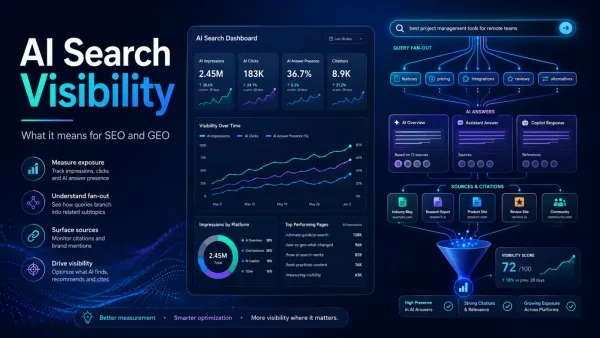
Search Console now has dedicated generative AI performance reporting for supported Google Search features. It adds a useful visibility signal, but it does not replace the fundamentals above: a page still needs to be discoverable, indexable, and useful. Google says those AI reports reached websites worldwide on 31 August 2026. I will cover how to interpret them in a separate hands-on guide; Google's announcement is the primary source for the rollout.
The takeaway: use Search Console to find the next decision, not to collect screenshots of rising lines. Verify the property, identify one page with demand, check that important URLs can be indexed, and make one documented improvement. Then return to the same evidence to see what changed.